
Overview
AI Lead Discovery is the starting point in Lead Titan — it's the default page you see after login. Describe your ideal customer in plain English and AI finds and verifies matching companies and contacts for your order. First leads usually arrive within minutes; full orders take a few hours.
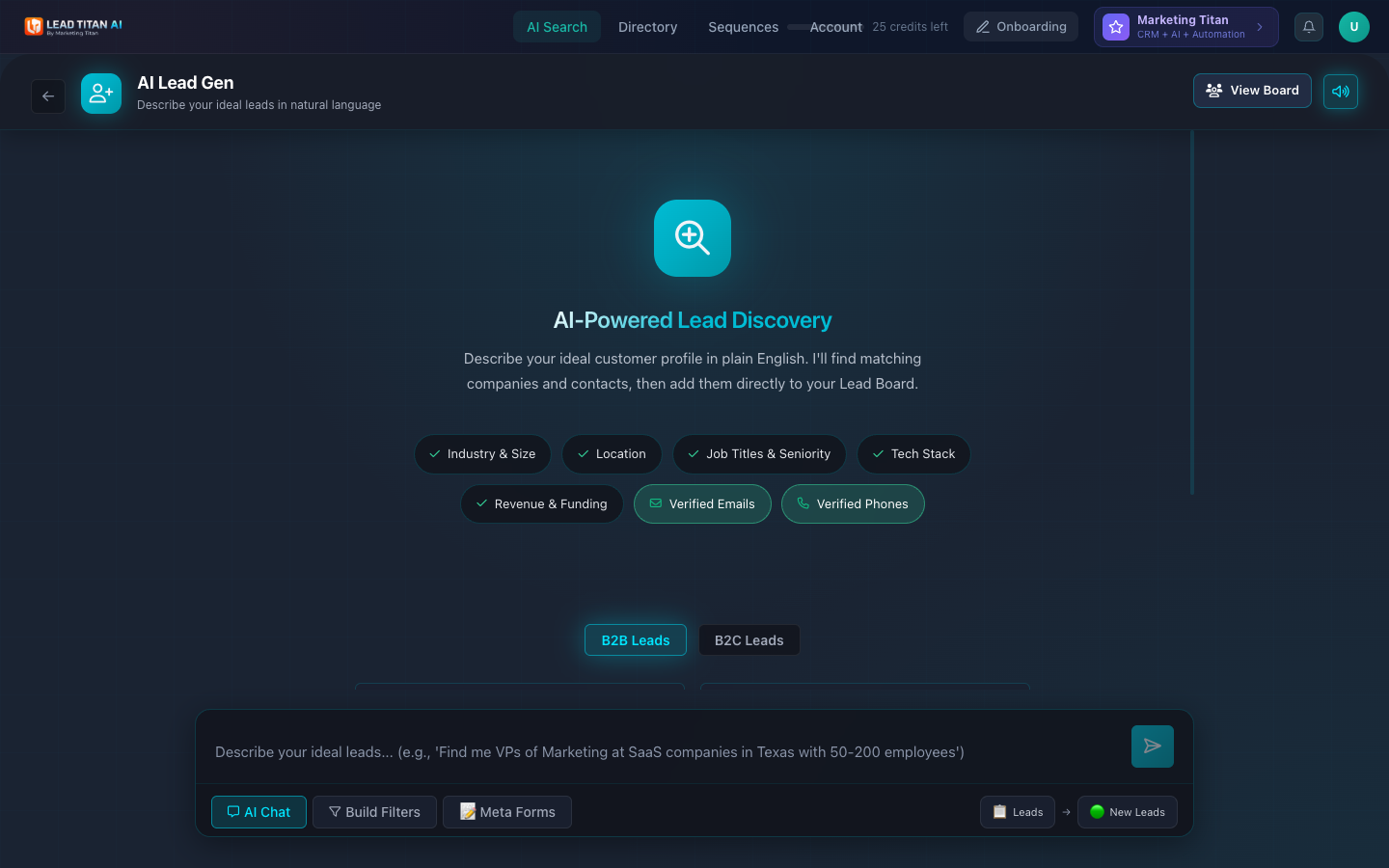
Three search modes are available at the bottom of the page: AI Chat (the default), Build Filters, and Meta Forms. You can switch between them at any time.
AI Lead Discovery finds B2B leads: companies and decision makers. It is strongest for local and small businesses.
AI Chat Search
AI Chat is the default search mode. Type a natural language description of your ideal leads into the search bar and let the AI do the rest.
Example Queries
"Find me VPs of Marketing at SaaS companies in Texas with 50-200 employees"
"Architecture firms in Denver Colorado"
"Managing Partners at Personal Injury Law Firms in Texas with 5-20 attorneys"
What the AI Understands
- Industry & Size — SaaS, healthcare, law firms, and thousands more, filtered by employee count.
- Location — City, state, region, or country-level targeting.
- Job Titles & Seniority — VPs, Directors, C-suite, Partners, Owners, and more.
Results include options for Verified Emails (+1 credit per lead) and Verified Phones (+1.5 credits per lead).
After submitting your search, it runs in the background: leads appear in the Directory → People tab as a new search session as each one passes verification. Voice input is also available via the microphone button next to the search bar.
Each search generates leads that cost 1 credit each. Email verification (+1 credit) and phone verification (+1.5 credits) are optional add-ons per lead, so a fully verified lead costs 3.5 credits. Leads we can't deliver are refunded automatically.
Build Filters
Switch to Build Filters mode by clicking the Build Filters button at the bottom of the AI Search page. This gives you a structured filter interface with expandable sections:
- Industry — Select from preset industries (SaaS/Technology, Healthcare, Finance, Real Estate, Insurance, Legal, Marketing, E-commerce, Manufacturing, Consulting) or type custom ones.
- Company Size — Filter by number of employees.
- Job Titles — Specify the decision makers you want to target.
- Location — Company headquarters location.
A quick filter button in the bottom bar lets you jump directly to Location.
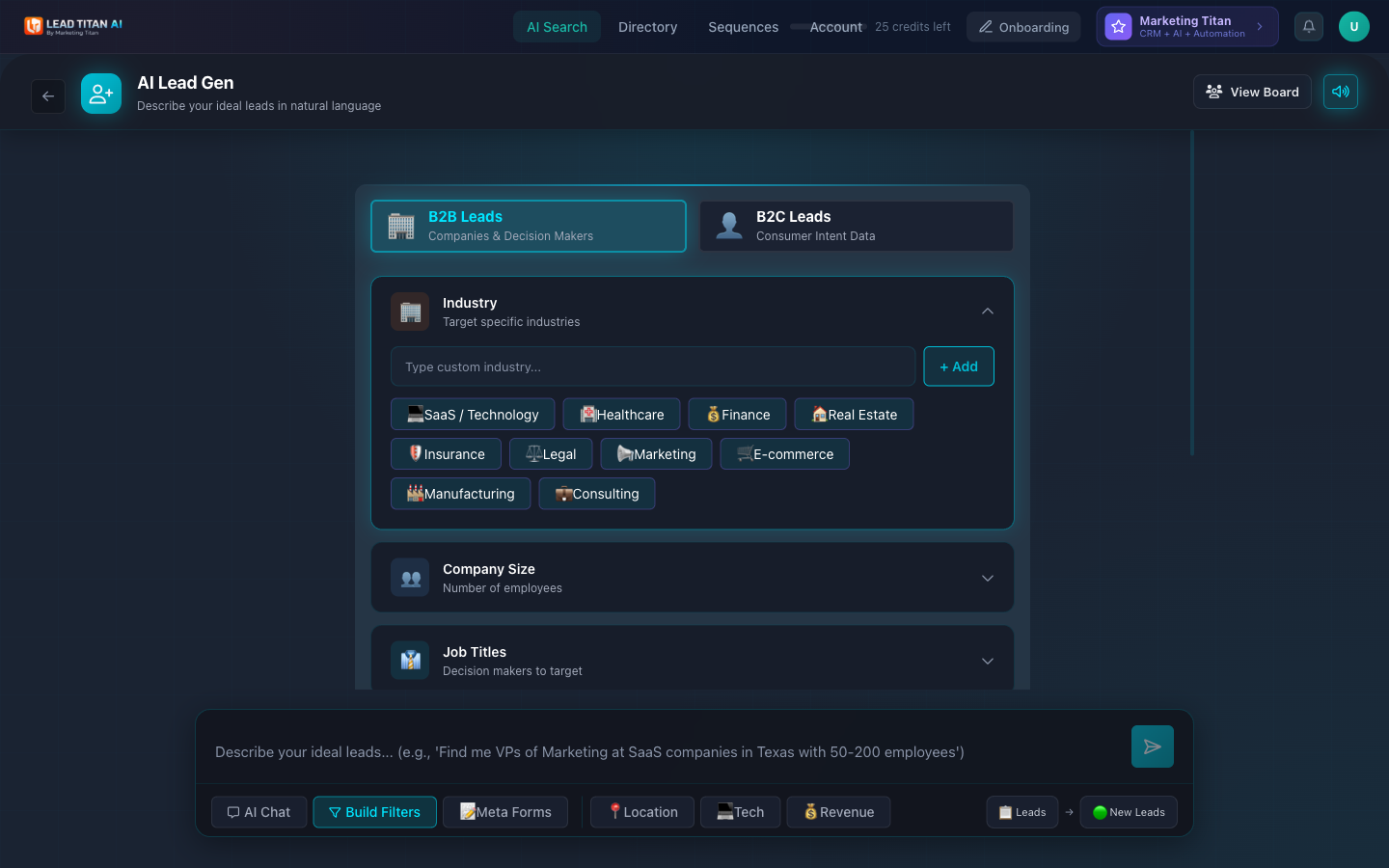
Once your filters are configured, click Generate Leads to run the search.
Build Filters is ideal when you know exactly what criteria you need. For more exploratory searches, use AI Chat instead.
Why It Takes Time
Lead Titan doesn't export contacts from a static database. Every search runs as a background job: leads are found and verified for your order, and each one appears in the Directory → People tab as soon as it passes verification.
- First leads usually arrive within minutes.
- Full orders usually take a few hours.
- Large or niche orders can take up to 24 hours.
Database tools return results instantly because they're returning old records. We check every contact for your order, so results arrive over minutes to hours. Quality, qualified leads take time. You can watch results arrive live in the app.
Lead Titan is strongest for local and small businesses, and B2B people search is supported. Sources include business listings and maps, company websites and team pages, public registries and records, plus our own lead bank.
Search Suggestions
Pre-built search templates appear in AI Chat mode. Each suggestion includes an emoji, industry name, and specific targeting criteria. Click any suggestion to populate the search and run it.
- Personal Injury Law Firms — Managing Partners in Texas, 5-20 attorneys
- Real Estate Brokerages — Broker/Owners in Florida with 10+ agents
- Independent Insurance Agencies — Agency Principals, P&C focus, Southeast region
- Digital Marketing Agencies — Agency Owners, 5-25 employees
- SaaS Companies — VPs of Marketing, 25-100 employees
- Medical & Dental Practices — Practice Owners, 3+ locations
Search suggestions are a great way to get started quickly. They show the kind of natural language queries the AI understands.
Board & Destination
At the bottom-right of the search bar, you can select where leads are delivered after a search.
- Board selector — Choose which board to add leads to (default: Leads).
- Group selector — Choose which group/stage within the board (default: New Leads).
As results arrive, navigate to Directory → People to see your search session and results. From the Directory, you can:
- Reveal contacts (spend credits to unlock full details)
- Export CSV or Excel
- Save the search for future use
- Add leads directly to email sequences
See the Directory guide for details on managing your results.
Next Steps
Now that you understand AI Lead Discovery, explore these related guides:
- Directory — Manage People, Companies, and search sessions.
- Email Sequences — Create outreach campaigns for your leads.
- Getting Started — Understanding credits and account setup.
- Pricing — Compare plans and credit allocations.