
Overview
Email Sequences lets you create automated multi-step email outreach campaigns directly inside Lead Titan. Accessible via the Sequences tab in the top navigation, it combines AI content generation with flexible campaign design to help you reach prospects from your own Gmail or Outlook inbox.
There are two ways to build a sequence:
- AI Quick Builder — Describe what you want in plain English and Darwin generates the complete sequence for you.
- Advanced Builder — Full control over every detail: name, AI prompt, brand, persona, channels, and visual options.
The AI writes each email based on your brand profile and persona settings, and sequences send from your connected Gmail or Outlook account.
AI Quick Builder
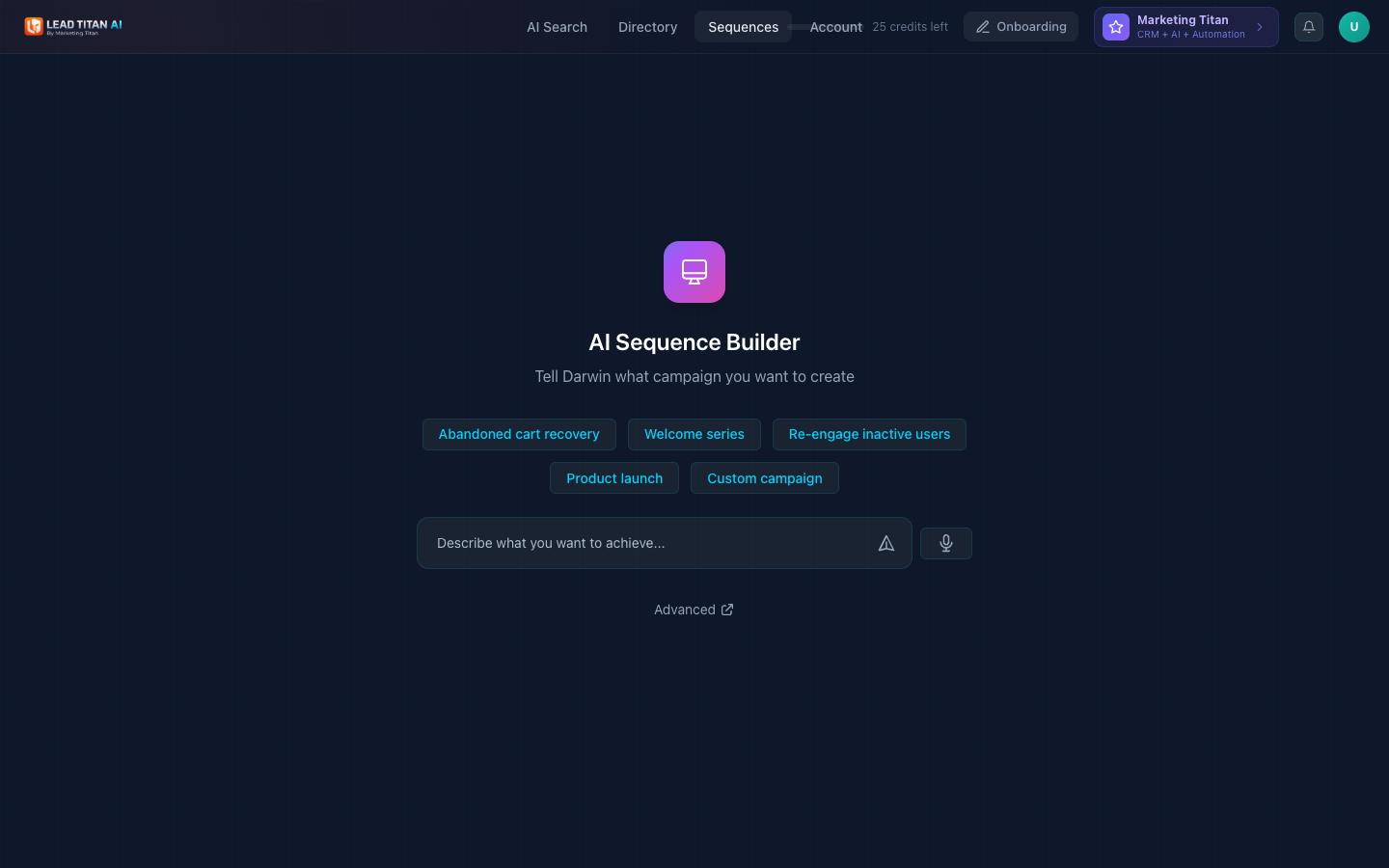
The AI Quick Builder is the default view when you click Sequences in the top navigation. It provides the fastest way to create a complete outreach sequence.
At the center of the screen is a text input with the placeholder: "Describe what you want to achieve...". Type your campaign goal in natural language, or choose from one of the pre-built campaign templates that appear as clickable chips:
- Abandoned cart recovery
- Welcome series
- Re-engage inactive users
- Product launch
- Custom campaign
Click a template chip or type your own description, then click Send to have the AI generate your sequence. Voice input is also available via the microphone button next to the text field.
At the bottom of the Quick Builder you'll find a link to the Advanced builder for more granular control.
Tip: The AI Quick Builder is perfect for getting started fast. Darwin generates a complete multi-step sequence based on your description and brand profile.
Advanced Builder
Access the Advanced Builder via the Advanced link at the bottom of the Quick Builder, or navigate directly to /lead-titan/sequences/create. This mode gives you full configuration control over every aspect of your sequence.
The Advanced Builder includes the following configuration sections:
- Sequence name — Give your campaign a descriptive name.
- Description — Brief description of the campaign goal.
- AI prompt — Detailed instructions for what you want to achieve (large text area). This is where you tell Darwin exactly what to generate.
- Brand selector — Choose which brand profile to use for tone and content.
- Persona selector — Choose the sender persona (e.g., "Marcus Rodriguez").
- Channels — Email, sent from your connected Gmail or Outlook.
- Options — Enable AI Hero Images for visual content in your emails.
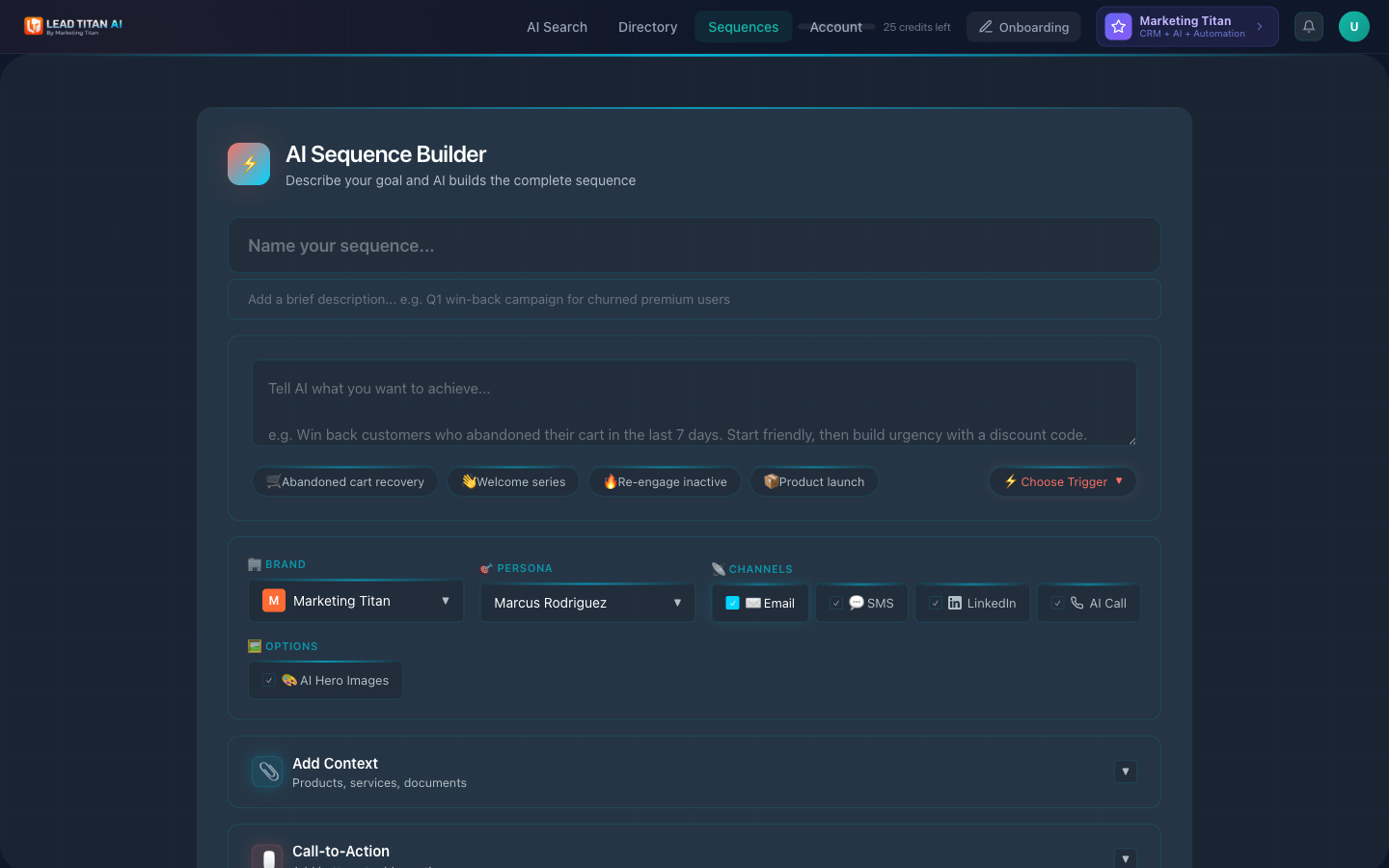
Click Generate Sequence when all fields are configured. At minimum, you need a sequence name and an AI prompt to generate.
Sending & Tracking
Lead Titan sequences are multi-step email campaigns:
- Multi-step with delays — Set the delay between each step of the sequence.
- AI-written emails — Subject lines, body text, and CTAs generated from your brand profile and persona.
- Merge tags — Personalize each email with fields like
{{first_name}}and{{company}}. - Send from your inbox — Emails go out from your connected Gmail or Outlook account.
- Open and click tracking — See who opened and clicked each email.
- Unsubscribe link — Included so recipients can opt out.
For phone outreach, see the AI Caller add-on (Growth and Pro plans, from $79/mo).
Campaign Templates
Pre-built templates in the Quick Builder help you get started with common campaign types:
- Abandoned cart recovery — Win back customers who left items in their cart. Builds urgency with discount codes and reminder sequences.
- Welcome series — Onboard new users or customers with a warm introductory sequence that builds familiarity and trust.
- Re-engage inactive users — Bring back users who haven't engaged recently with targeted re-activation messaging.
- Product launch — Announce new products or features to your audience with a multi-touch launch campaign.
- Custom campaign — Start from scratch with your own description and let the AI build the sequence around your goal.
Advanced Builder Trigger Templates
In the Advanced Builder, additional trigger-based templates are available:
- Abandoned cart recovery — Triggered when a user abandons their cart.
- Welcome series — Triggered on new user signup.
- Re-engage inactive — Triggered after a period of inactivity.
- Product launch — Triggered on launch date.
- Choose Trigger (custom) — Define your own trigger conditions.
Context & CTAs
The Advanced Builder lets you enrich your sequence with context and calls-to-action that help the AI generate more relevant, personalized content.
Add Context
- Products — Attach product information for the AI to reference in the sequence content.
- Documents — Upload supporting documents (PDFs, decks, one-pagers, etc.) for the AI to draw from.
- Links — Add URLs the AI should reference or include in the generated messages.
Call-to-Action
- Configure button text (e.g., "Shop Now", "Book a Demo", "Learn More").
- Set a destination URL for each CTA.
- Add multiple CTAs per sequence for different steps.
Footer Links
- Auto-populated from your brand settings.
- Privacy Policy URL.
- Email Preferences URL.
- Social Media Links.
Better context = better content. Add your product pages, case studies, or landing page URLs for more relevant, personalized AI-generated copy across every step of the sequence.
Next Steps
Now that you know how to build sequences, explore related features:
- AI Lead Discovery — Find leads to add to your sequences.
- Directory — Manage your leads and export data.
- AI Caller — AI-powered outbound calling add-on.
- Account Settings — Configure sending settings and integrations.