
Overview
Account Settings is accessible via the Account tab in the top navigation. This is your central hub for managing everything about your Lead Titan workspace — from personal profile details to team access, billing, and security.
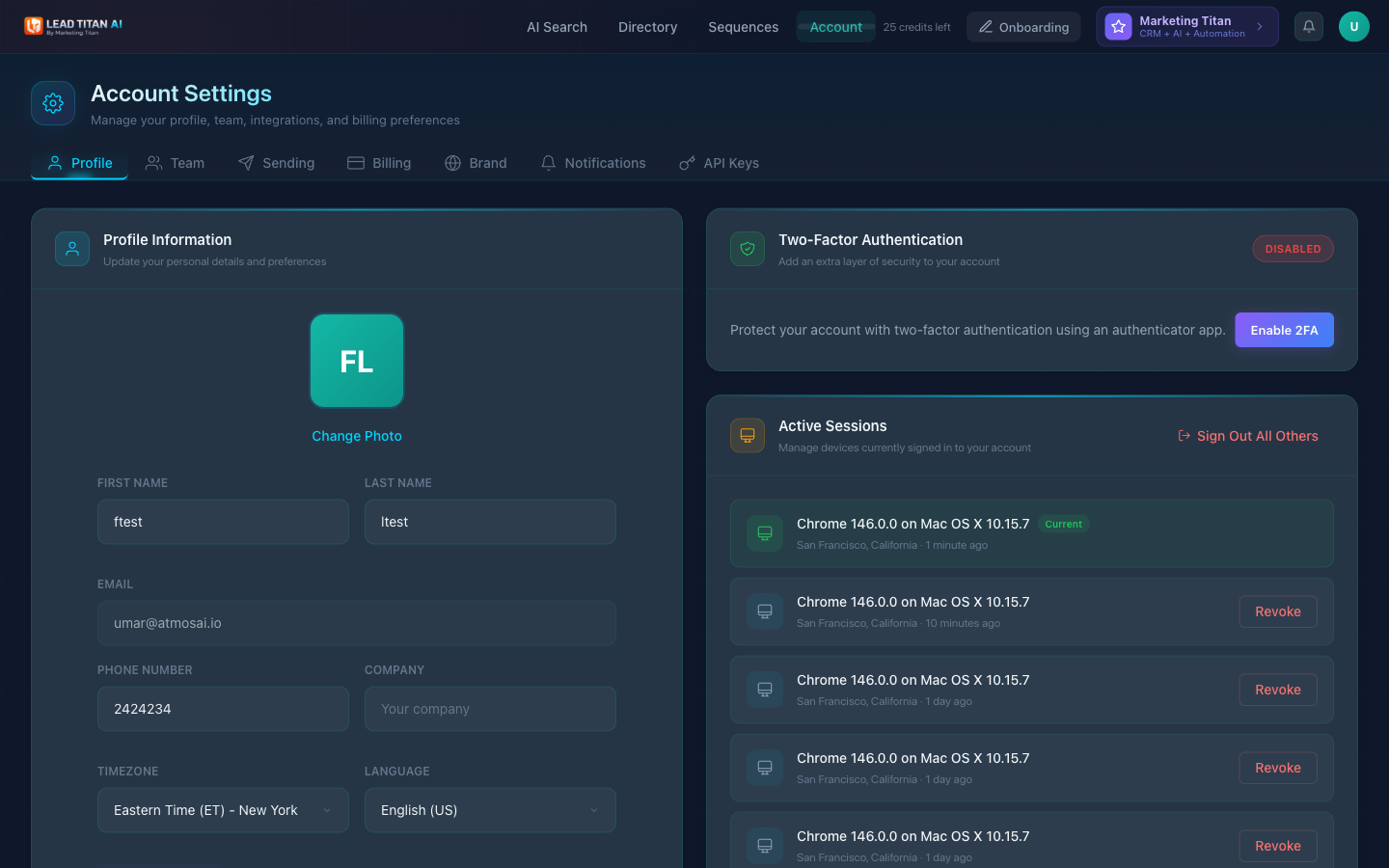
The settings area is organized into seven tabs: Profile, Team, Sending, Billing, Brand, Notifications, and API Keys.
Profile
The Profile tab lets you manage your personal information and login credentials.
Profile Information
- Avatar / profile photo — Click your avatar to upload a new profile photo.
- First Name and Last Name
- Email address
- Phone Number
- Company name
- Timezone — Choose from Pacific, Mountain, Central, Eastern, UTC, GMT, or CET.
- Language — English US, English UK, Spanish, French, or German.
Click Save Changes to update your profile information.
Change Password
- Current Password — Enter your existing password for verification.
- New Password — Choose a strong new password.
- Confirm Password — Re-enter your new password to confirm.
Click Update Password to apply the change.
Team Management
The Team tab lets you invite colleagues, manage roles, and control access to your Lead Titan workspace.
- Team Seats — Shows how many seats are used on your current plan.
- Invite Team Members — Click the Invite Team Member button to send email invitations to your colleagues.
- Team Members table — View all team members with columns for Member, Role, Status, Last Active, and Actions.
- Pending Invites — Shows outstanding invitations with options to Resend or Cancel each invite.
Roles & Permissions
Each team member is assigned one of three roles:
| Role | Access Level |
|---|---|
| Admin | Full access — features, billing, team management |
| Member | Features & settings — no billing access |
| Viewer | Sequences & results — limited settings |
Seats included: Team seats are included with your plan at no extra per-seat charge: 1 on Free, 3 on Starter, 5 on Growth, and 10 on Pro.
Sending Settings
The Sending tab is where you configure your email sending infrastructure for outreach sequences.
- Connect your email provider — Connect your Gmail or Outlook account to send sequence emails.
- Sending limits and throttling — Control how many emails are sent per hour and per day to protect your sender reputation.
- Sender name and reply-to address — Customize the "From" name and reply-to email for your outreach.
- Email signature — Add your professional email signature that gets appended to sequence emails.
Configure before sending: Proper sending configuration is essential for deliverability. Configure your sending settings before launching email sequences to avoid landing in spam.
Billing & Plans
The Billing tab gives you full visibility into your subscription, usage, and payment history.
- Current plan and usage — See your active plan, credit balance, and usage breakdown.
- Upgrade or downgrade — Switch plans at any time. Upgrades take effect immediately; downgrades apply at the next billing cycle.
- Add-ons — Add or remove optional features like AI Caller and AI SDR.
- Billing history — View past invoices and download them as PDFs.
- Payment method — Update your credit card on file.
- Credit monitoring — Track credit usage and remaining allocation.
Downgrading your plan takes effect at the end of your current billing cycle. You keep your current features until then. Upgrades are immediate.
Brand Identity
The Brand tab stores your brand profile, which Lead Titan's AI uses to generate personalized content across the platform.
- Brand name and logo — Your company's display name and visual identity.
- Industry and target audience — Define your market and ideal customer profile.
- Tone of voice and messaging style — Guide how AI writes on your behalf (professional, casual, authoritative, etc.).
- Value propositions and key differentiators — What sets your product or service apart.
- Website URL — Your company's primary website.
Your brand data powers several AI features:
- Onboarding brand analysis — Darwin's initial scan of your website during setup.
- AI-generated email sequence content — Personalized outreach emails that match your voice.
- Search filter defaults — Pre-populated filters based on your target audience.
Auto-generated during onboarding: Your brand profile was initially created during onboarding when Darwin analyzed your website. You can update it anytime here to refine AI-generated content.
API Keys
The API Keys tab lets you generate and manage keys for programmatic access to Lead Titan. API access is available on the Pro plan ($449/mo).
- Create new keys — Generate keys with custom names and permissions for different integrations.
- View usage and rate limits — Monitor how each key is being used and its current rate limit status.
- Revoke keys — Revoke any compromised or unused key.
See the full API Reference for endpoint documentation.
API keys grant full access to your account's lead data. Keep them secure — never share keys in client-side code or public repositories.
Security
The Security section — found within the Profile tab — covers two-factor authentication, session management, and account deletion.
Two-Factor Authentication (2FA)
- Your 2FA status is shown as an Enabled or Disabled badge.
- Click Enable 2FA to set up two-factor authentication with an authenticator app (Google Authenticator, Authy, etc.).
- 2FA adds an extra layer of security by requiring a time-based code in addition to your password.
Active Sessions
- View all devices currently signed in to your account — including browser, operating system, location, and last active time.
- Your Current session is labeled so you can identify it.
- Click Revoke on any session to sign it out remotely.
- Use Sign Out All Others to revoke every session except your current one.
Danger Zone
- Delete Account — Permanently deletes your account and all associated data. This action cannot be undone.
Deleting your account is irreversible. All leads, sequences, search history, and team data will be permanently removed.
Next Steps
Now that your account is configured, explore more of Lead Titan:
- Getting Started — Account setup and onboarding.
- AI Lead Discovery — Start finding leads.
- Email Sequences — Build outreach campaigns.
- API Reference — Programmatic access documentation.