
Overview
The Directory is your lead database — accessible via the Directory tab in the top navigation bar. It's where every lead and company discovered through AI Search lives, organized and ready for action.
- Four sub-tabs: People (default), Companies, Sequences, and Templates
- People shows your search sessions and discovered leads
- Companies shows the companies associated with your leads
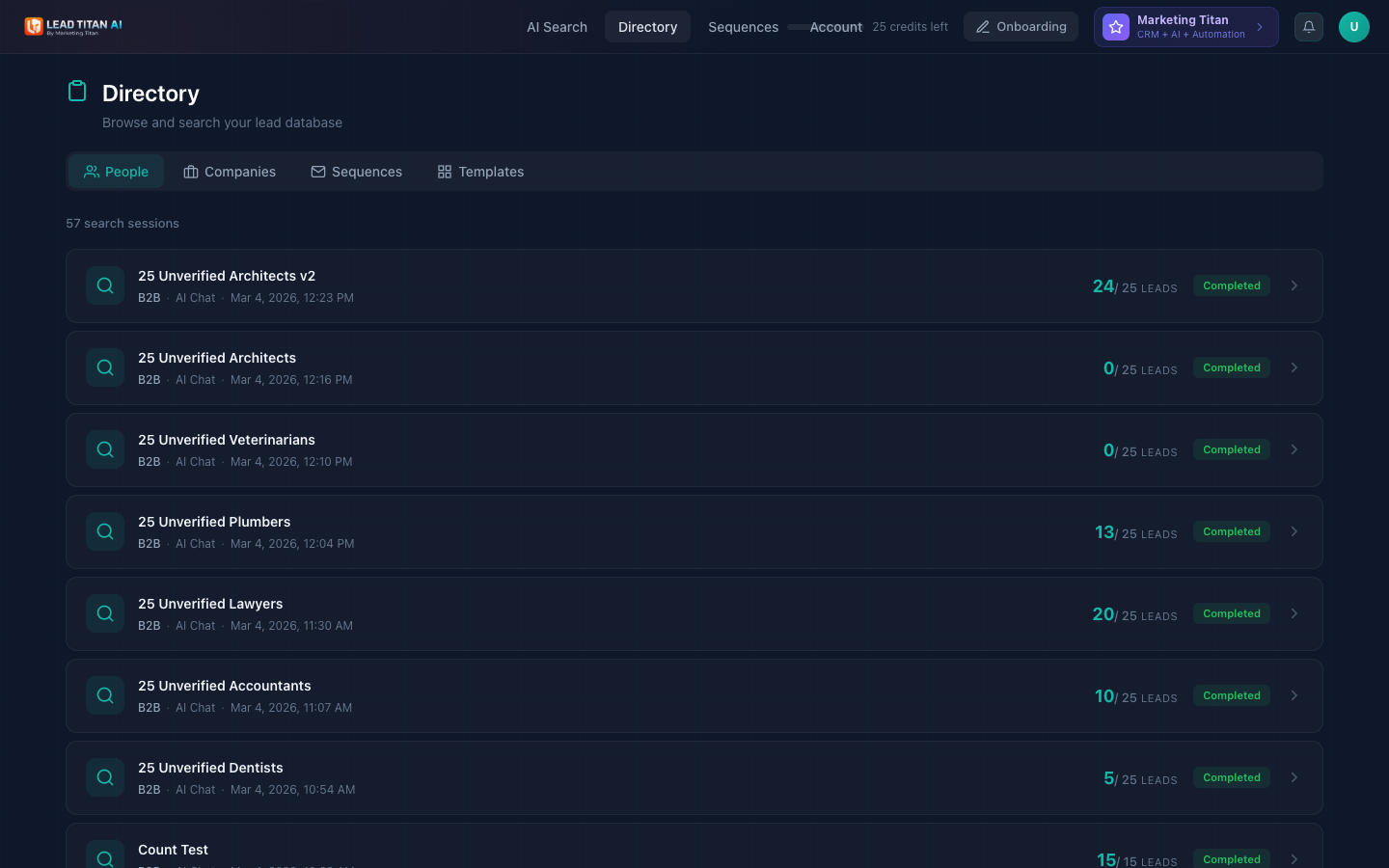
People Tab
The People tab is the default view when you open Directory. It shows all your search sessions in a list, ordered by most recent first.
- Each session displays: session name, lead type (B2B), search mode (AI Chat), date, lead count (e.g., "24/25 leads"), and status (Completed/Failed)
- Sessions are paginated — 20 per page
- Click any session to drill into the lead results
Search Sessions
Each AI Search you run creates a new session that appears in the People tab. Sessions are the primary way your leads are organized. Leads appear in the session as each one passes verification, so a session fills over minutes to hours: first leads usually within minutes, full orders over a few hours.
- Session card shows the original search query (e.g., "Find me architecture firms in Denver Colorado"), completion status, number of leads found, and processing time
- Statuses: Completed (green) and Failed (red)
- Use pagination at the bottom to browse older sessions
Lead Results Table
Click into a session to see the full results table. This is where you review, reveal, and act on individual leads.
- Columns: Contact (name + avatar), Email, Phone, Company, Title, ICP Fit (Cold/Warm/Hot), Signals, Location, Actions
- Reveal a lead by clicking the credit button (e.g., "1 credit") in the Actions column — this spends 1 credit to unlock full contact details
- Filter leads using the All, Revealed, and Unrevealed toggle buttons
- Search within results using the search bar ("Search by name, company, email...")
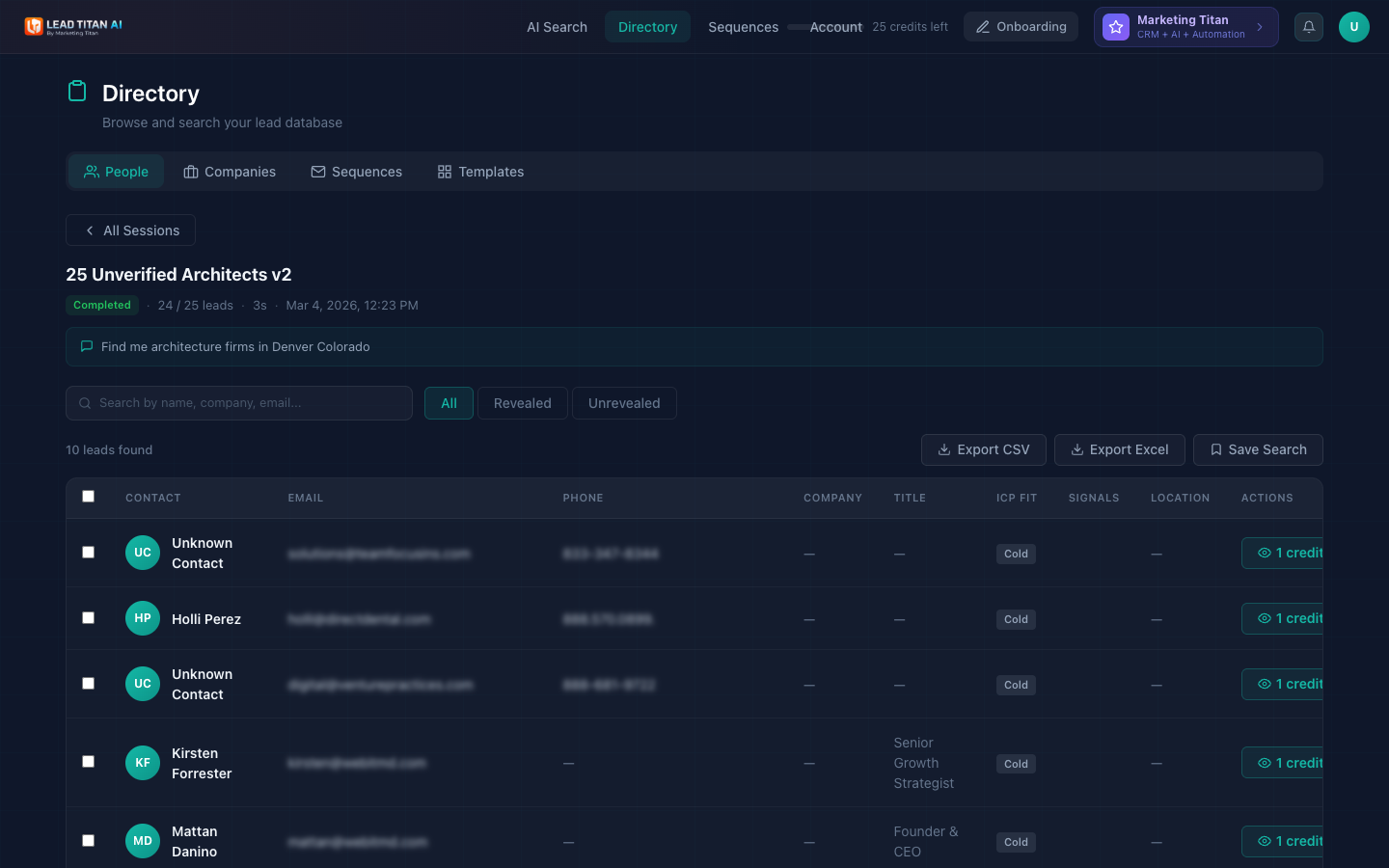
Leads marked as Unrevealed show partial data. Revealing a lead costs 1 credit and unlocks the full contact information including verified email and phone.
Companies Tab
Switch to the Companies tab to see all companies discovered across your searches. This gives you a bird's-eye view of the organizations in your pipeline.
- Columns: Company (name + logo), Industry, Size (employees), Location, Website, Actions
- Each company has a Find Contacts button to discover more leads at that company
- Industry tags are color-coded (Law, Law Practice, Legal, SaaS, Technology, etc.)
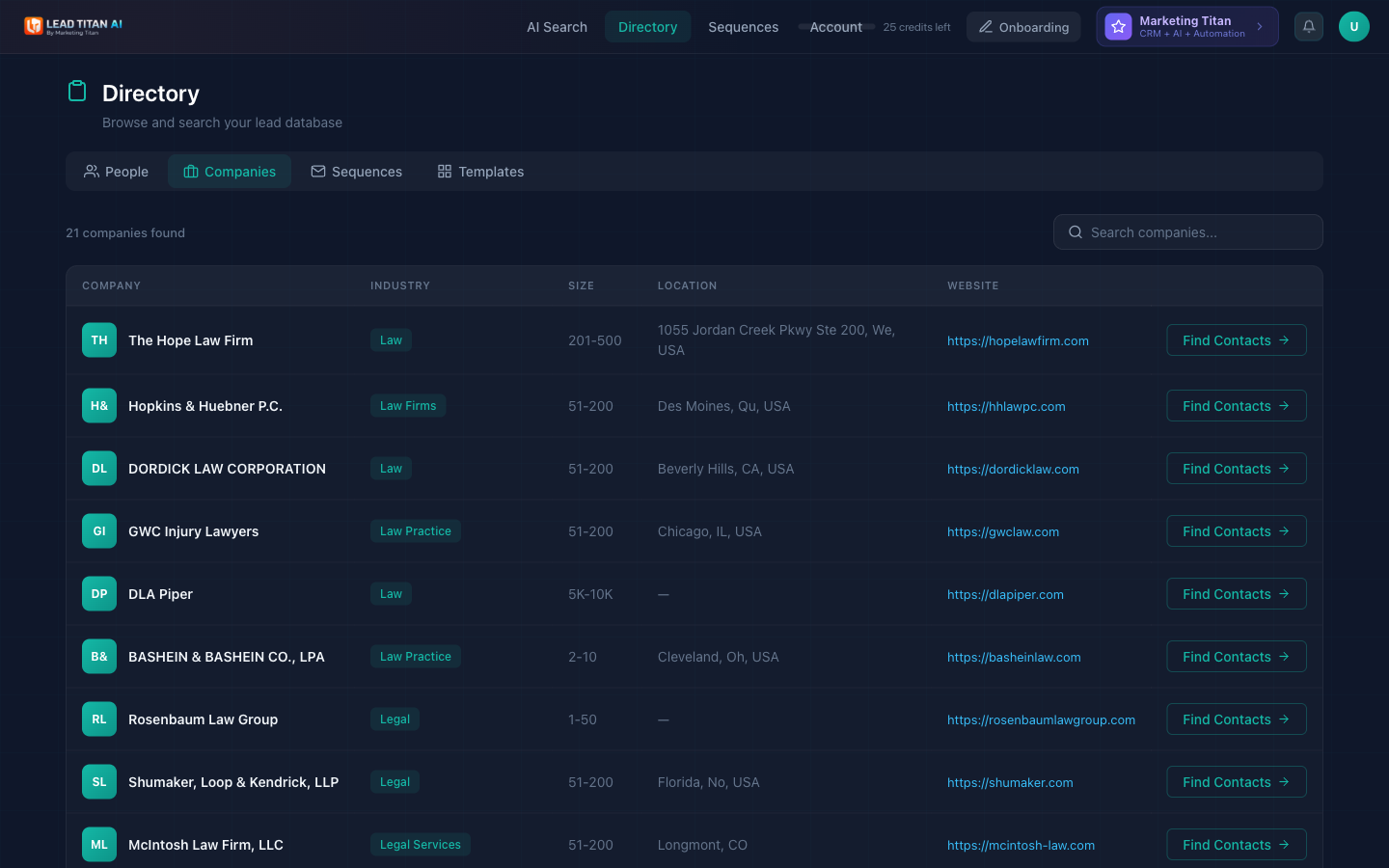
Click Find Contacts on any company to run a targeted search for more decision makers at that specific organization.
Export & Actions
From any lead results view, you have several options for getting data out of Lead Titan and taking action on your leads.
- Export CSV — Download all leads as a CSV file
- Export Excel — Download all leads as an Excel spreadsheet
- Save Search — Bookmark this search session for quick access later
Select individual leads using checkboxes for bulk actions. The search bar at the top filters results as you type by name, company, or email.
Next Steps
Now that you know your way around the Directory, explore these related features:
- AI Lead Discovery — Learn how to run searches that populate the Directory.
- Email Sequences — Create outreach campaigns for your leads.
- Account Settings — Manage team access and API keys.
- API Reference — Programmatic access to your lead data.